Booking with your coach takes a few taps. Pick an open slot or a class, confirm, and it lands on your schedule with the time in your zone.
Open your coach's page
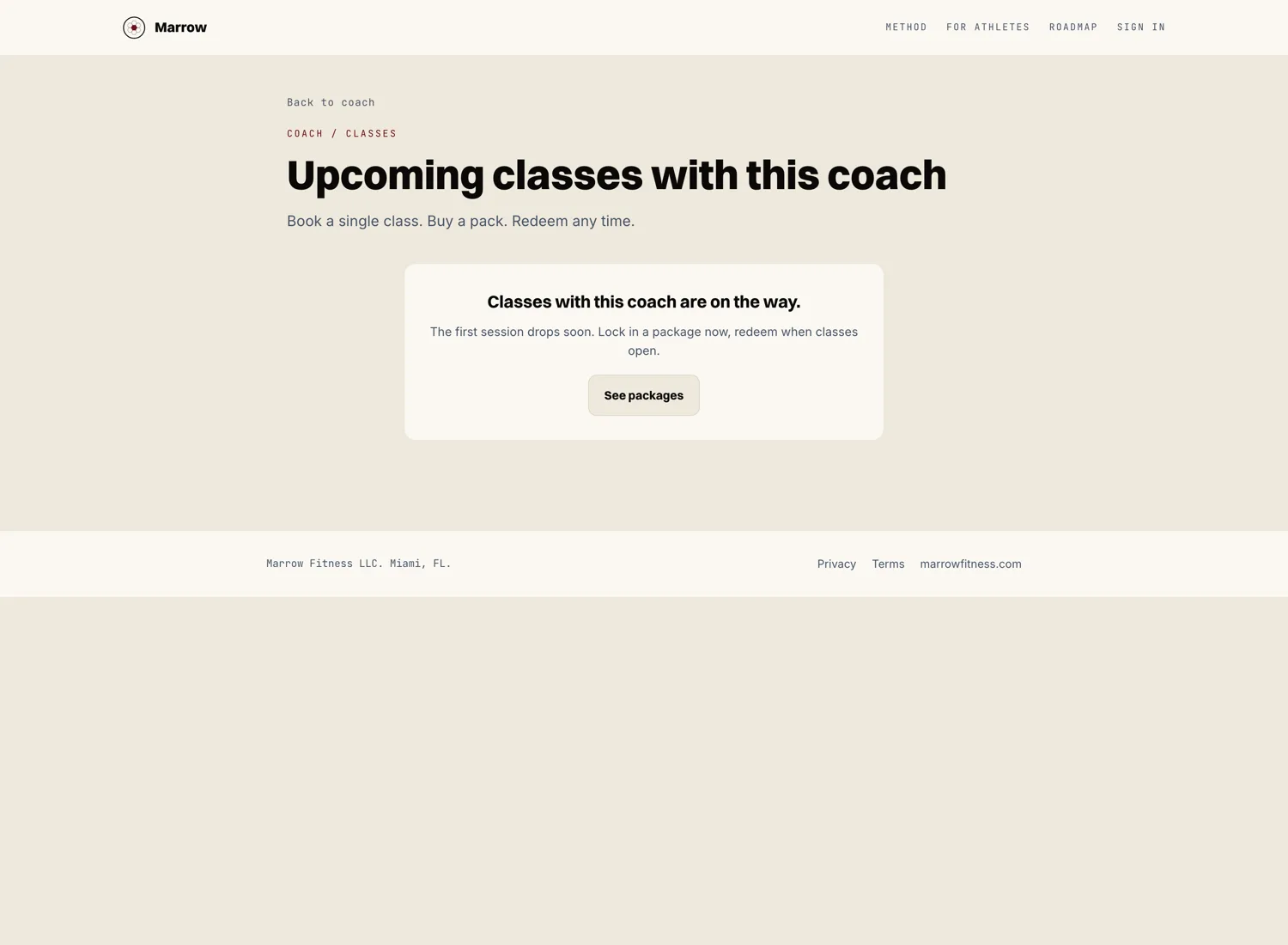
Go to your coach's public page or open the Upcoming card on your athlete dashboard. You will see their open slots and any live classes they have scheduled, each with a time, a length, and whether it is online or in person.
Pick a time that works
Choose an open slot for a one on one session, or pick a live class. Every time is shown in your own time zone, so what you see is what you get.
Confirm and pay if needed
If your coach charges for the session or class, you confirm through a quick secure checkout. If you hold a class package, you can spend one class from your pack instead. Some sessions are included in your coaching plan, and those just confirm with a tap.
It lands on your schedule
Once confirmed, the session or class shows up on your athlete dashboard under Upcoming. You get a reminder before it starts. For an online session, the join link is right there when it is time.
For a class at your gym, you can also tap Book every week on the class card to hold the same class each week.